


Let’s be honest: shared hosting is where most websites starting with WordPress begin.
It’s cheap, it works, and your client (or boss) already paid for three years upfront. The problem shows up later – when the site needs 7 seconds to load and everyone starts whispering, “Maybe we should move to a better host.”
Sometimes that’s the right call. But often you can squeeze a lot more speed out of shared hosting before you spend a single extra rupee or dollar.
This guide is about that: free, realistic tweaks that actually move the needle.
1. Know What’s Slowing You Down (It’s Not Just “Bad Hosting”)
Before you touch plugins, it helps to understand where the time is going.
On a typical slow WordPress site, speed tests and waterfall charts usually show the same culprits: heavy images, too many requests, bloated themes/plugins, and long TTFB due to limited shared resources.
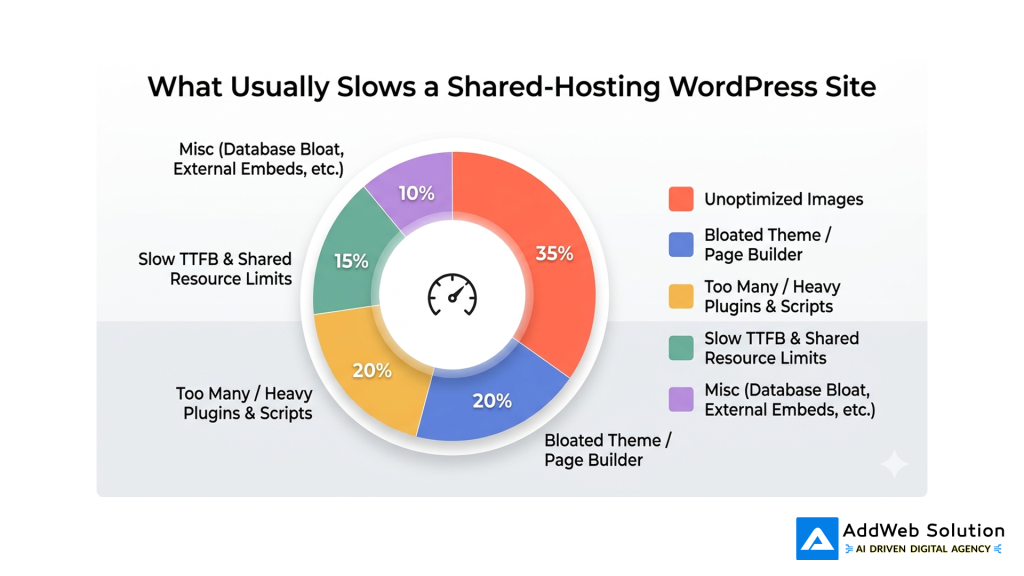
Caption:
“Most shared‑hosting sites are slow because of what we install on top – not the hosting alone.”
- Good news: 4 out of 5 issues above are fixable without upgrading plans.
2. Pick a Lightweight Theme and Trim the Plugin Fat
On shared hosting, your theme and plugins matter more than you’d like to admit.
Guides on shared‑server optimization consistently call out heavy themes and plugin bloat as major performance killers. Themes like Astra, GeneratePress, and Neve are often recommended for lean setups.
Table – Quick Theme & Plugin Audit
| Item | Question to Ask | What to Do |
| Theme | Is it a “multipurpose everything” theme with tons of effects? | Consider switching to a lightweight theme tuned for speed. |
| Page builder | Are you using all those animations and widgets? | Disable unused modules; consider using Gutenberg where possible. |
| Plugins | Do you really need each plugin? | Remove duplicates (multiple SEO/caching plugins), old experiments, “last used in 2022.” |
Human tip you can add in the copy:
A simple rule I use: if we can’t remember why a plugin is still active, it goes on the chopping list.
How small agencies scale WordPress delivery, without hiring full-time teams?

Pooja Upadhyay
Director Of People Operations & Client Relations
3. Turn On Caching (Your Biggest Free Win)
Shared hosting means your site shares CPU, memory, and I/O with lots of other sites. That’s why caching is non‑negotiable.
Performance guides keep repeating the same thing: page caching is the single biggest win because it stops WordPress from rebuilding the page on every request.
On shared hosting, you typically have three free options:
- A host‑provided cache in cPanel or the host dashboard.
- A lightweight plugin like Cache Enabler, WP Super Cache, or the caching module inside WP‑Optimize.
- Browser caching rules via .htaccess (if allowed).
Mini checklist – Basic Caching Setup (Free)
- Turn on page cache (host or plugin).
- Set browser cache for images, CSS, JS (via plugin or .htaccess).
- Avoid running two caching plugins at the same time – pick one and commit.
You can humanize it by adding:
I’ve seen sites drop from 5+ seconds to under 2.5 seconds just by flipping on page caching and browser caching – no design changes, no host change, nothing fancy.
4. Fix Your Images (Especially the Ones Nobody Resized)
If your homepage has a few big banners, product photos, or portfolio images, they’re almost certainly heavier than they need to be.
Image optimization is repeatedly listed among the top free ways to speed WordPress on shared servers: compressing files, using modern formats, and lazy loading below‑the‑fold media.
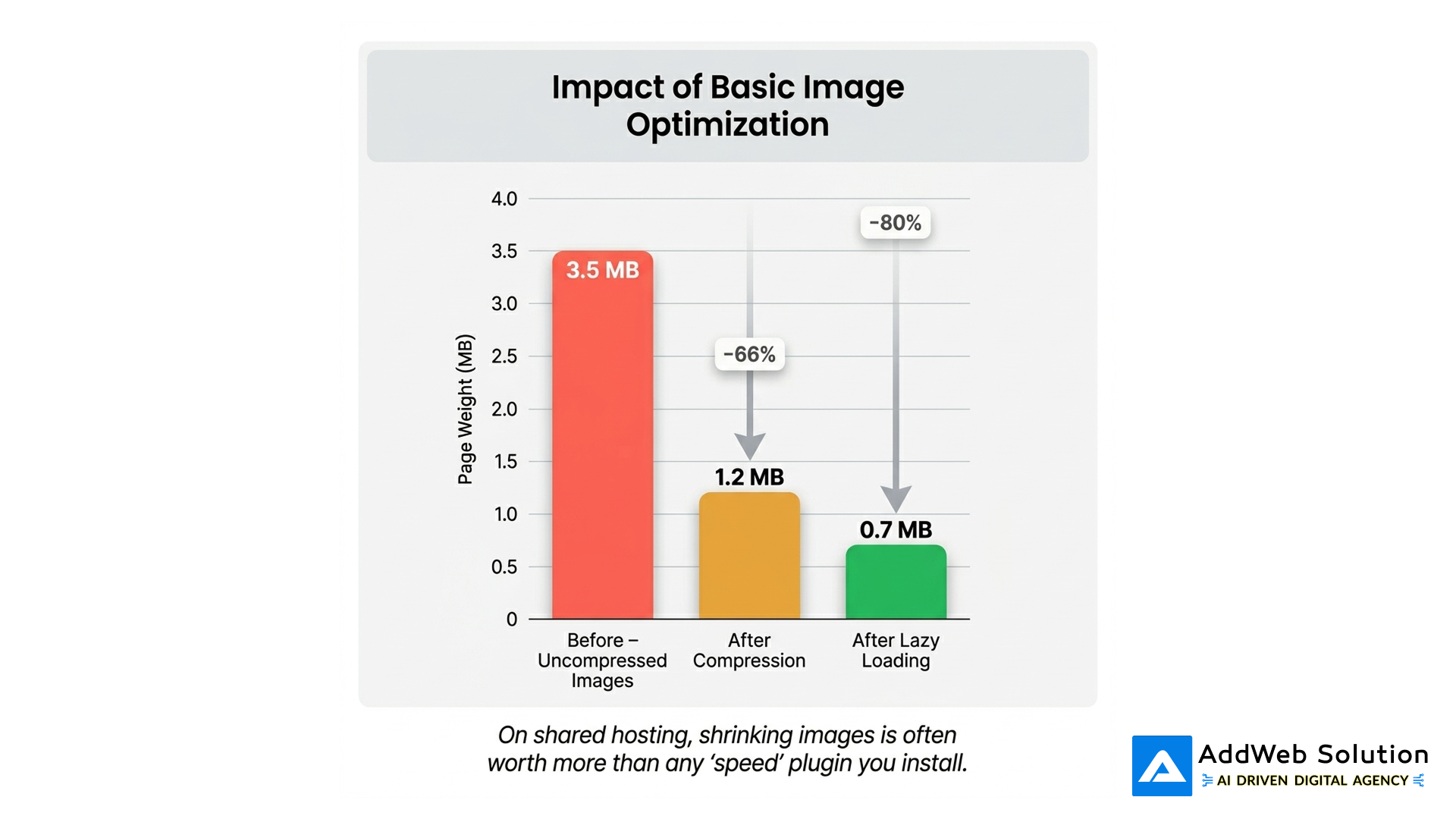
Free things you can do:
- Compress images before upload using free tools (TinyPNG, Squoosh, etc.).
- Use a free plugin with limits (like the image module in WP‑Optimize, ShortPixel free tier, or other freemium optimizers) to bulk‑compress existing media.
- Enable lazy loading so images below the fold only load when scrolled into view.
If your hero image is 4MB, no shared host on earth will make that feel fast.
5. Minify and Combine CSS/JS (Without Breaking the Site)
Shared hosting typically means slower disk and CPU compared to VPS, so every extra request and every oversized file hurts more.
Most speed guides recommend minifying CSS/JS/HTML and, where possible, combining files to reduce total requests and size.
Free tools that often work well on shared hosting:
- Autoptimize – minify and aggregate CSS/JS/HTML; can defer non‑critical scripts.
- WP‑Optimize (free parts) – cache + minify + database cleanup.
Table – Safe Starting Settings for Minification (Shared Hosting)
| Setting | Recommendation (Start Here) | Why |
| CSS | Minify + combine; keep “inline CSS” minimal | Fewer, smaller CSS files = faster first paint. |
| JS | Minify; defer non‑critical JS | Stops render‑blocking scripts from delaying content. |
| HTML | Minify | Small, quick win on page weight. |
Important to sound human:
Turn things on one at a time and test. Minifiers can break styles or scripts. I usually keep a staging copy or at least test key pages in an incognito window after each change.
6. Use a Free CDN Like Cloudflare (Yes, Even on Shared Hosting)
A free CDN is one of the best hacks for shared environments. It doesn’t give you more CPU on the origin server, but it does:
- Cache static assets closer to visitors.
- Improve DNS speed.
- Add compression like Brotli or GZIP.
Cloudflare’s free plan is widely recommended: it offers global caching, free SSL, DNS, and basic security on top.
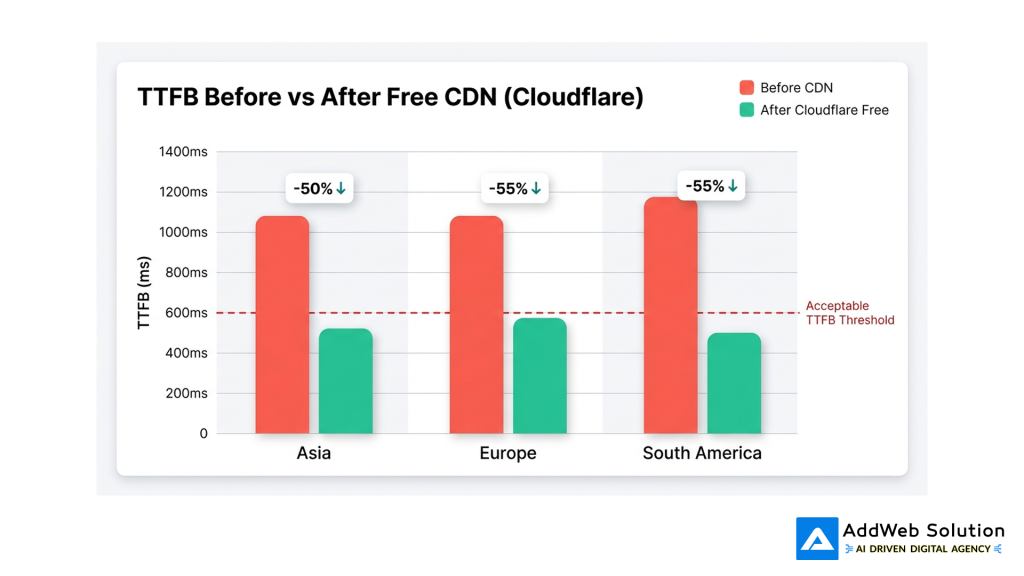
Caption:
“A free CDN can cut perceived latency in half for distant visitors – even if your shared host stays the same.”
Free setup steps you can list:
- Point your domain to Cloudflare nameservers (free).
- Turn on “Cache static content” and Brotli compression.
- Enforce HTTPS and HTTP/2+ (usually automatic).
- Add simple firewall rules for obvious bots to reduce waste.
7. Clean Your Database and Disable “Hidden” Slowdowns
Over time, shared hosting WordPress installs accumulate junk:
- Old post revisions
- Trashed posts and comments
- Transients and expired options
- Deactivated but not deleted plugins
Database cleanup and trimming cron jobs can reclaim some performance.
Simple table – What to Clean Safely
| Area | What’s Safe to Clean | Tool / Method (Free) |
| Post revisions | Excess old revisions for active posts | WP‑Optimize (free features) or manual SQL if advanced. |
| Trash | Deleted posts, pages, comments | Empty trash periodically. |
| Transients | Expired transient entries | WP‑Optimize or similar. |
| Deactivated plugins | Unused code | Delete completely; don’t just deactivate. |
Add something like:
None of this will turn a 20‑second disaster into a rocket – but combined with caching and image fixes, it can shave off enough time to feel “snappy” instead of “heavy.”
8. Manage External Scripts and Embeds
Even if you fix everything inside WordPress, third‑party scripts can keep dragging you down.
Guides on shared‑hosting performance specifically call out external scripts and widgets as hidden performance costs: analytics tags, chat widgets, ad networks, font providers, social embeds, etc.
Free optimizations you can do:
- Load analytics scripts with a delay or only after user interaction.
- Self‑host fonts or use your CDN instead of multiple external font calls.
- Remove chat widgets or pop‑ups that don’t justify their performance hit.
- For YouTube/Vimeo embeds, use “click‑to‑play” thumbnails instead of full iframes loading on page load.
You might add:
On some sites, removing a single live chat widget and a couple of social feed plugins saved more time than a week of CSS tweaking.
9. How Far Can You Go on Shared Hosting – And When Is It Time to Move?
You can get surprisingly far with good optimization. Many shared‑hosting optimization guides show slow sites dropping from 6–8 seconds to ~2–3 seconds with only free tools and tweaks.
But there is a ceiling.
Articles on TTFB improvements warn that if you’re consistently above 1 second TTFB across regions even after caching + CDN + cleanup, you’re hitting the limits of the shared plan. At that point, you’re not failing – your plan is.
Small table – “Stay and Optimize” vs “Time to Upgrade”
| Situation | Stay on Shared + Optimize | Time to Upgrade |
| TTFB < 800 ms with caching/CDN | Yes – you still have room. | Not urgent. |
| Occasional spikes during traffic | Yes – consider better caching and CDN | Maybe later. |
| TTFB > 1s consistently, even cached | You’ve hit the wall. | Move to better shared tier, managed WP, or VPS. |
| WooCommerce + heavy traffic | Shared might survive with tuning | Strongly consider upgrade. |
Human way to phrase it:
Free tuning is like squeezing the last bit of toothpaste out of the tube. At some point, there just isn’t any more left – and then it’s okay to say, “We’ve outgrown this plan.”
10. Example Free Optimization Stack for Shared Hosting
To make this concrete, here’s a sample “no extra cost” stack you can mention or turn into a checklist:
- Theme: Lightweight (Astra / GeneratePress / Neve).
- Caching: One plugin (Cache Enabler or WP‑Optimize free cache).
- Minification: Autoptimize or built‑in minify from the caching plugin.
- Images: Pre‑compressed + lazy loading; optional free image optimizer plugin.
- CDN: Cloudflare Free with SSL and Brotli.
- Cleanup: WP‑Optimize database cleanup monthly.
- External scripts: Delayed analytics, minimal third‑party widgets.
You can wrap it up with something like:
None of these steps require upgrading your hosting. They require a bit of curiosity, some testing time, and a willingness to delete things you don’t really need.
Final Thought: Make Shared Hosting Your Training Ground, Not Your Ceiling
Shared hosting gets a bad reputation, but it’s also an excellent training ground.
If you can make a website built with WordPress feel fast on a crowded shared server – using only free tools and smart decisions – you’ll have no trouble squeezing even more performance out of better infrastructure later.
So instead of jumping straight to “we need a new host,” try this sequence:
- Audit theme + plugins.
- Turn on caching.
- Fix your images.
- Minify and clean up static files.
- Add a free CDN.
- Clean the database and trim external scripts.
Only after that, look at your numbers again. If your site still crawls, you’ll know two things:
- You genuinely need stronger hosting.
- You won’t carry bad habits with you when you upgrade.
That mix – good habits plus better hardware – is where WordPress really starts to fly.
Transform your website with WordPress 2026 updates
Pooja Upadhyay
Director Of People Operations & Client Relations
Source URLs:
https://kinsta.com/learn/speed-up-wordpress/
https://wordpress.org/support/topic/what-changes-can-i-implement-to-speed-up-a-very-slow-site
https://wordpress.org/plugins/wp-optimize/
https://www.youtube.com/watch?v=pgthWOfJLO0
https://www.reddit.com/r/Wordpress/comments/12o7fhs/what_are_the_best_ways_to_speed_up_my_website/
